

To create Goals within the Action Plan, first select the Participant's tile.
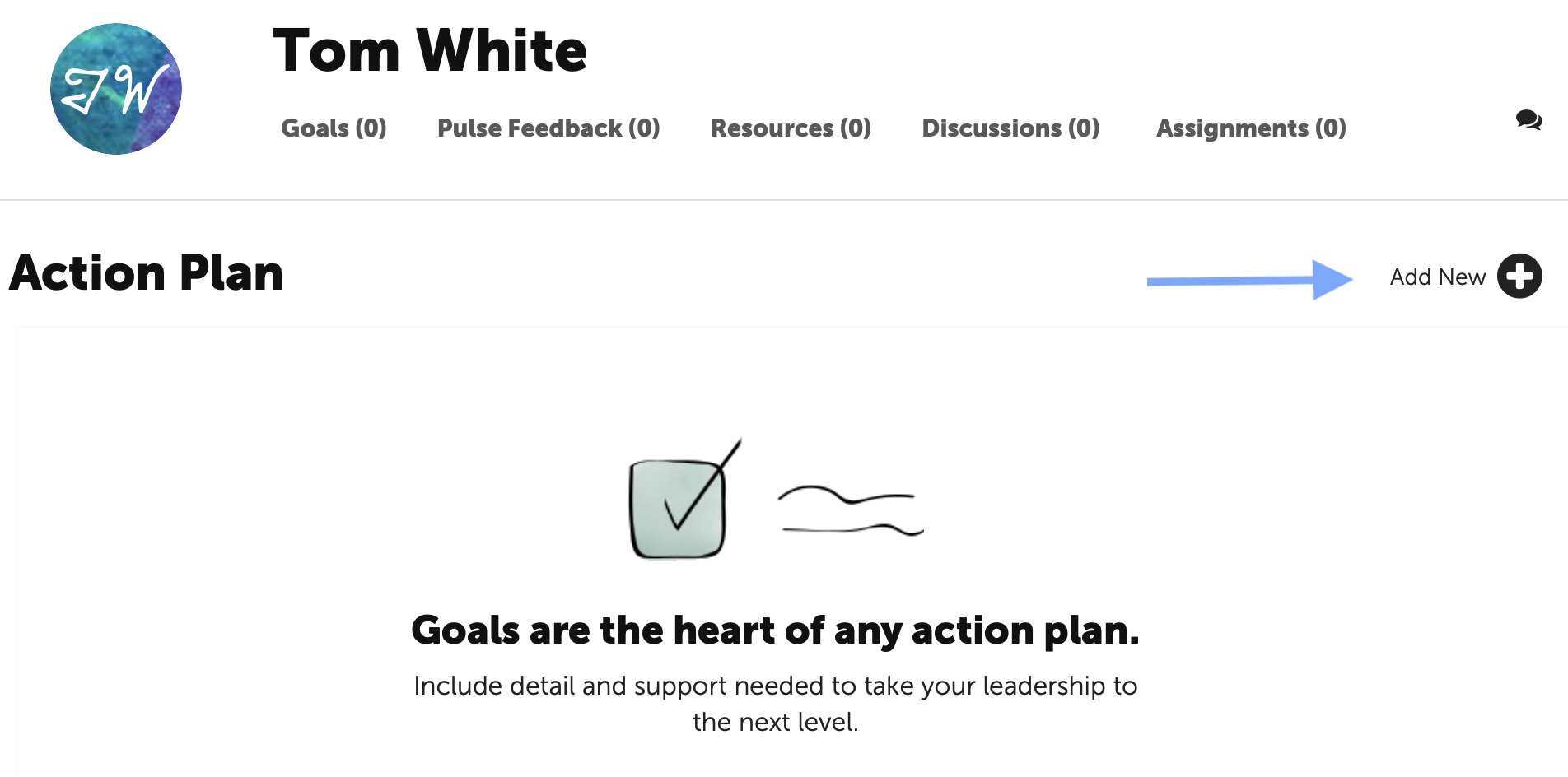
On the Participant's page, click on the “+” in the upper right corner of the Action Plan area to create a new goal.
Developing the Action Plan
Either the Coach or the Participant can create the action plan.
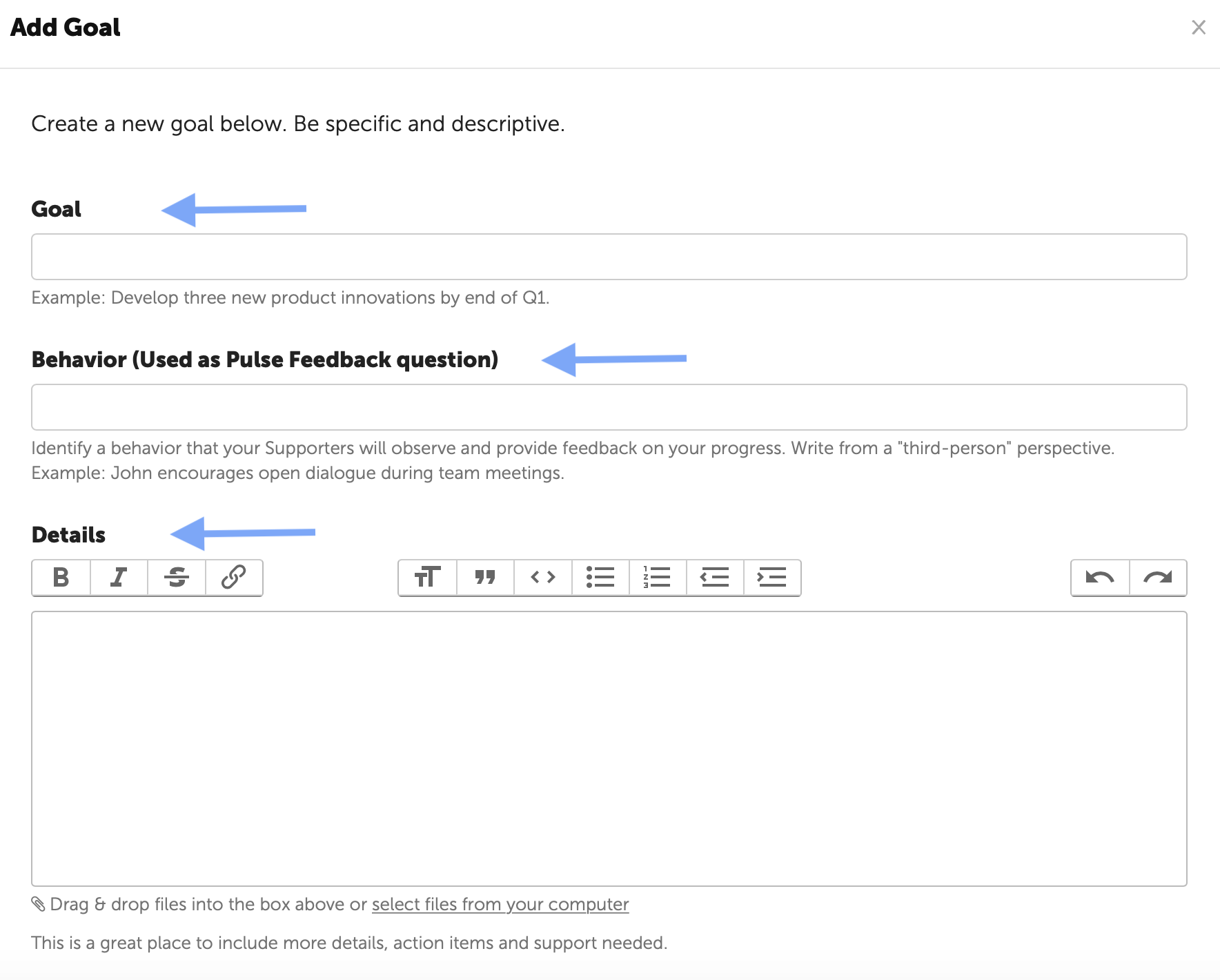
The Goal Statement should be created to be SMART:
Specific
Measurable
Actionable
Realistic
Time-oriented
The Behavior Statement
The text populated in the behavior statement will display on the Pulse Feedback survey. It should be written in third person. It should be a behavior that is:
Observable by others.
Important enough to make a critical difference in your success.
Action oriented.
Using the Details Text Box
The Details text box should be used as working space to go into depth on each goal. It could capture specific Action Items or call out Support that is Needed.
It can support files, image, or screenshots.
This information can be updated throughout the engagement to ensure there is clarity and accountability.
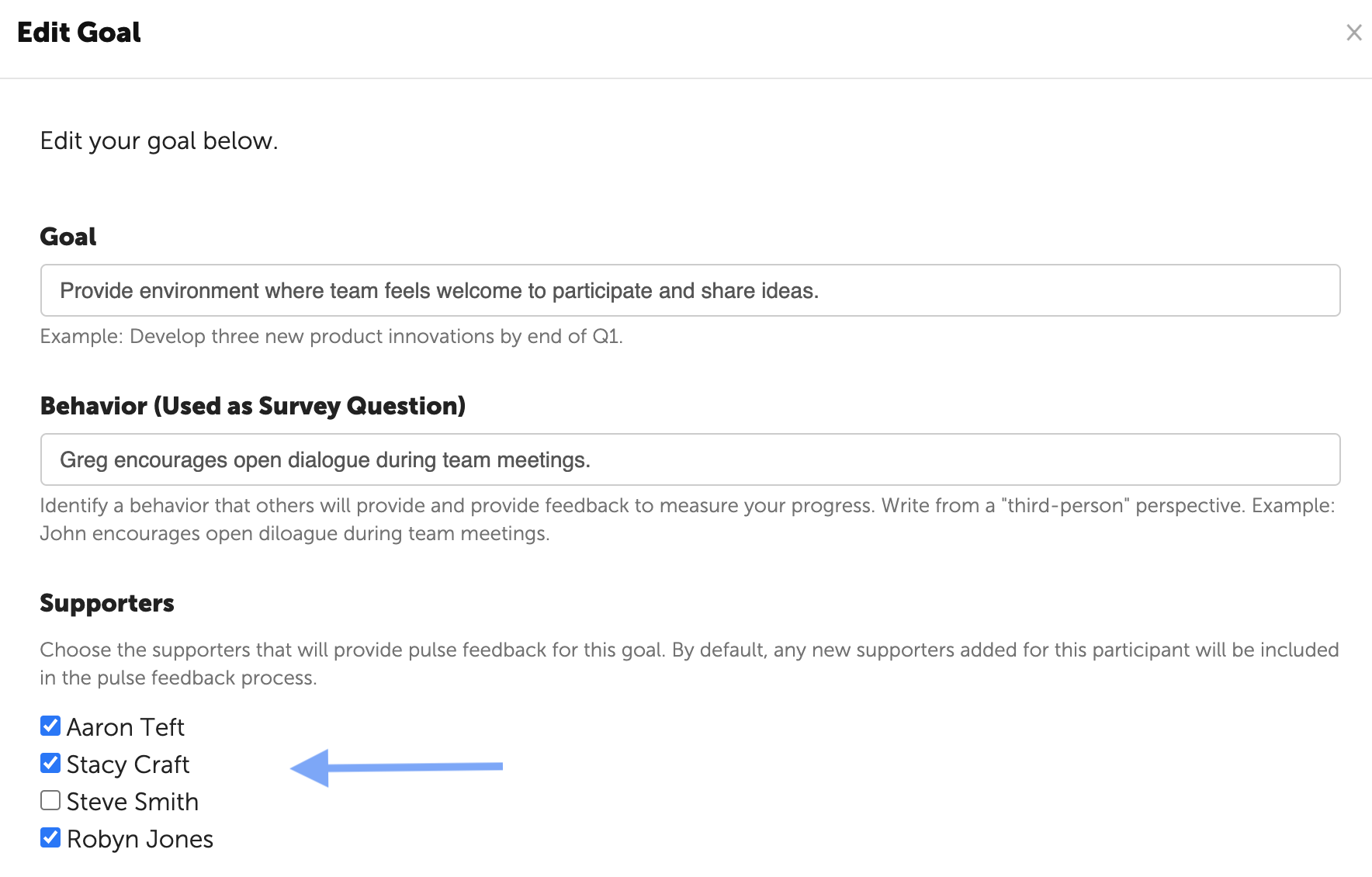
Assigning Supporters to Each Goal
Once the Supporters have been added to the platform, (See article: Add Supporters ) they are assigned to goals.
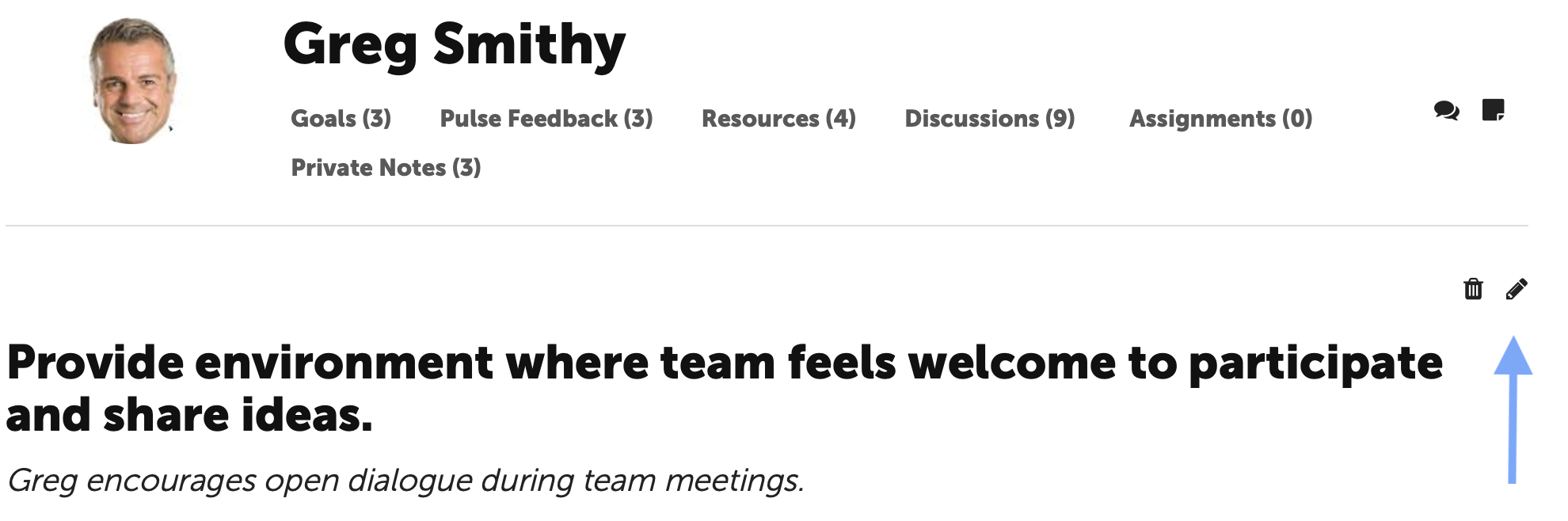
By default, all of the Supporters are assigned to each of the goals. To select which Supporter is assigned to a goal, return to each goal to edit. (First click on the goal, then click the pencil icon to edit.)
Check the box next to the names of the Supporters that are directly impacted by the specific behavior of the goal.
Multiple Iterations to Complete
The Action Plan will likely be revised and refined multiple times. Once it is finalized, the Pulse Feedback process can begin.